- Docs
- Assistants
Assistants
Switch on an assistant in any app, which answers from your building's live data with cards and tiles, name it and teach it.
An app's assistant is something your team asks questions, beside the board or the plan they read. "Which dock doors are open?" "Is meeting room 4 too warm?" "Which robots need charging?" It answers from your building's live data, with cards and small live tiles, and from the tiles in the app, on the page that's open and on the app's other pages.
Any app can have one, whatever it started from. Chat Assistant is no longer something you start an app from: an app made as one before keeps its assistant, and the Assistant switch in its Settings tab now turns it on and off, as on any other app.
Add an assistant to any app
Open your app in the builder, go to the Settings tab and switch Assistant on. People using the app can then ask it about the site. It reads your data and never writes to it.
The Settings tab lists its sections on the left: Assistant, What Ziggy knows (with your assistant's own name), Opening site and App values. Click one to go to it.
Then choose where it lives:
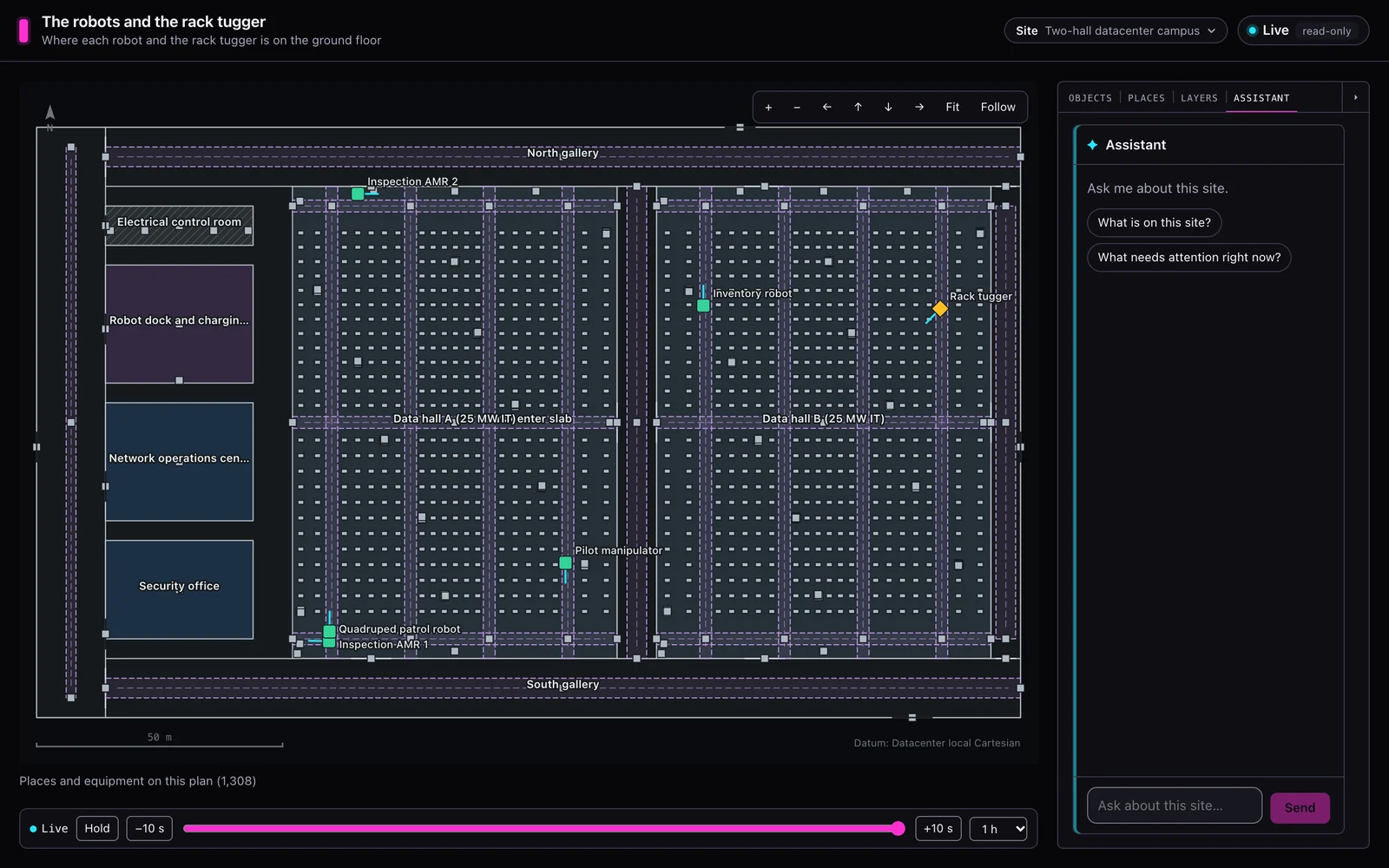
- Side panel: a tab in the right-hand panel, beside the app's own tabs. An app without a side panel gets one that holds only the assistant. If the app's own panel can't take another tab, the assistant shows as the header button instead.
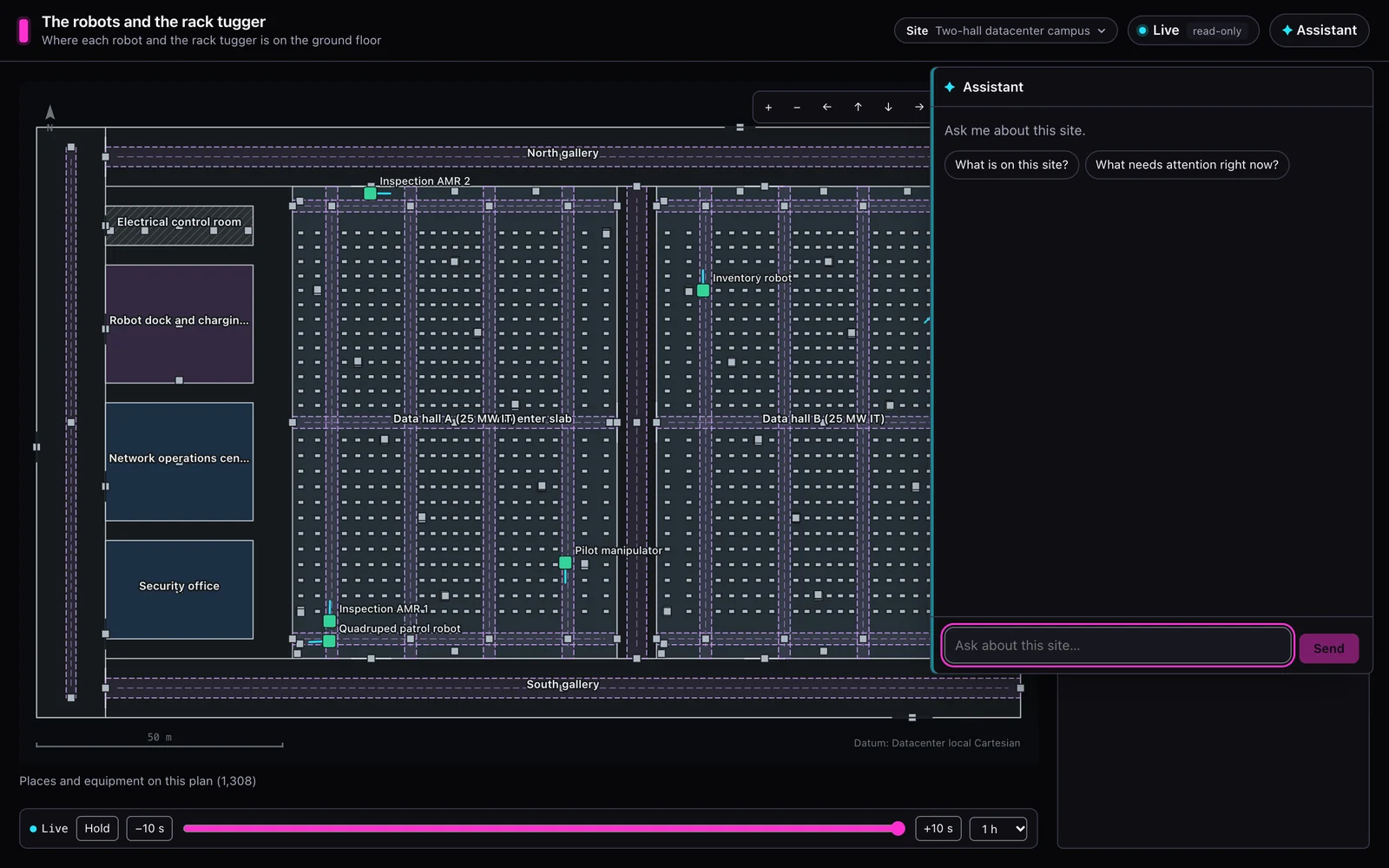
- Button in the header: a button in the app's header that opens the assistant over the page. It floats over the page drawn the other way round from the app, light on a dark app and dark on a light one, so it stands out.
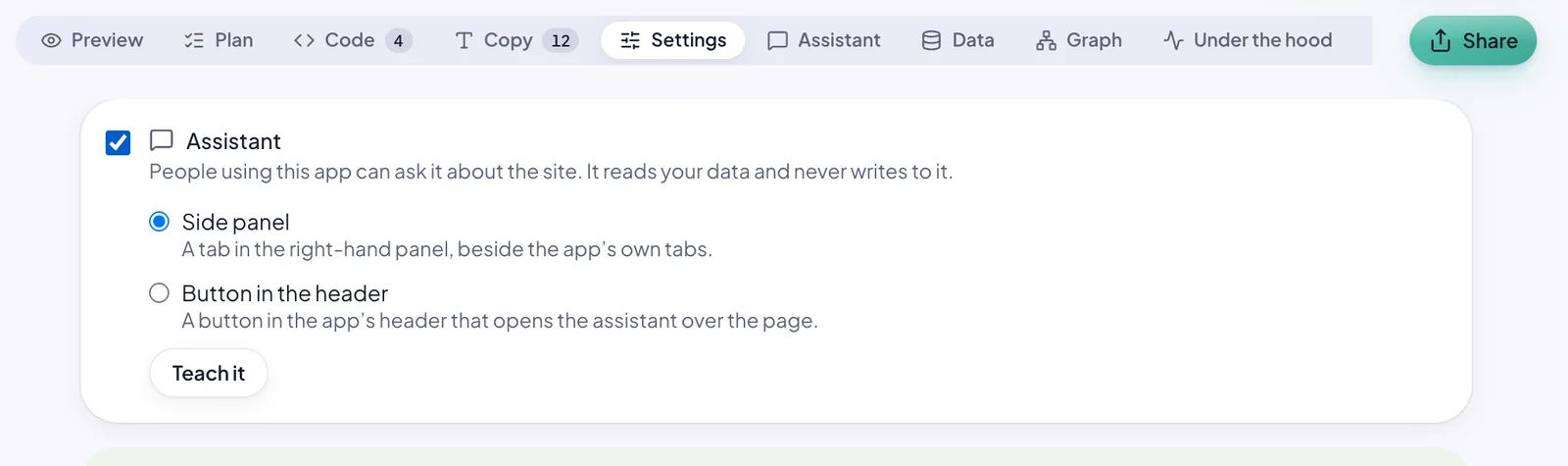
The change shows in the preview straight away. Rivet doesn't need to rebuild anything. Switch Assistant off to take it away again; what you taught it is kept, so switching it back on brings it back as it was.
If Rivet gave your app cards of its own (a dock-door card, say) or actions of its own (showing a floor, say), the assistant uses them wherever you put it, in the side panel or behind the header button. Switching the assistant on or off does not lose them.
With Side panel, the assistant is a tab of the right-hand panel, beside the app's own tabs, under its name. It greets the person with a line and a few questions to start from.
With Button in the header, the same assistant opens over the page from a button at the top of the app.
Its name and icon
Every app's assistant is called Ziggy until you name it, and has Ziggy's icon: a spark on a teal and blue square. An app whose assistant was called "Assistant" before Ziggy arrived shows Ziggy too. To change either, use the card at the top of the Settings tab, beside the switch:
- Name: type a name of up to 60 characters, then press Enter or click away. Esc puts the old name back.
- Upload icon: browse for a picture, drop one, or paste one. SVG, PNG, JPEG, GIF and WebP pictures work; Rivet cleans an SVG of anything but its drawing first. A square picture of 128 px or more looks best; it is cropped to a circle.
- Remove icon goes back to Ziggy's icon and keeps the name.
Beside the name, the card shows the assistant's button and a tile's ✦ button as your app will draw them, and they follow the name as you type. The name and icon are part of the app, so everyone using it, in every shared copy, sees the same assistant. The icon shows on the header button, the side panel's tab, the top of the assistant (in the header's drawer and in full screen; the side panel's tab already names it) and beside each of its answers. A tile's ✦ button keeps Ziggy's spark, whatever icon you upload.
Ask about a tile
On a page with an assistant, every tile has a ✦ button in its top right corner, left of Show full screen: hover the tile to see it, or on a touch screen it is always there. Its name says what it does: "Ask Ziggy about this tile" (with your assistant's name).
Press it and the assistant opens where the app keeps it, with the tile's name just above the message box, such as ✦ Zone CO₂. Type your question, "why is this high?", and send it: the assistant knows "this" means that tile, and what it shows goes with the message. One tile at a time: pressing ✦ on another tile replaces it. To take it out before you send, press the × beside its name.
The ✦ button is not there while the assistant is off, on a tile's back, while you arrange the board, or on a wall screen.
Full screen
On a phone, the header button opens the assistant full screen, so it has the whole screen to read and type in. Press the ✕ at its top right to close it, or the phone's Back button, which closes the assistant instead of leaving the app. The conversation is still there when you open it again.
On a wider window, the header button opens the assistant as a panel over the page, and a Full screen button in the assistant's top bar makes it fill the window. The same button, now Leave full screen, puts it back, and so does the Esc key. With Side panel, the Full screen button is at the top of the panel, beside the button that hides the panel, while the assistant's tab is the one open. Full screen only changes how much room the assistant has: it stays where you put it, and going in and out of it keeps the conversation, even a reply that is still being written.
When the assistant changes what is on screen (it shows a floor, say), it steps out of the way so you can see the page behind it. Behind the header button on a phone it closes; anywhere else it goes back to where it sits, the panel behind the button or the side panel. Open it again and the conversation is still there.
One conversation holds up to 100 messages. After that the assistant says you've reached the limit: reload the page to
start a new conversation. Whoever runs a Docker copy can change the number with RIVET_ASSISTANT_SESSION_TURNS.
What an assistant can do
An assistant answers from your site's data in Mapped. It can find things by name, describe one thing, locate a tracked person or vehicle, rank and count many things, say how a value changed, look up service records, show live tiles and the app's own cards, and run the app's own actions, such as showing a floor.
Service records are work orders and service requests. A complaint is often only a request that never became a work order, so the assistant looks at both. Ask "any comfort complaints?" or "who said it's too cold?" and it narrows them by their sector, such as "HVAC - Comfort", or by words in them.
It also reads the tiles and cards on the page the person is looking at: what each one shows, a chart's readings included. Ask "what needs attention?" on a board of charts and it answers from the charts on screen, without fetching what the page already has again.
On an app with pages, a question that spans them, such as "what needs attention?", is answered from the other pages too, the cards in their side panels included. The assistant says which pages and tiles it's reading, and that it may take a moment, then gives each answer as it comes in, saying which page it's from. It reads up to six pages at a time. A question about one page uses that page only. It can also open the page it's talking about: "That's on the Energy page."
It also answers questions about the app itself, from these docs: "How do I move a tile?", "What does Live off mean?", "What's the difference between a plan and a dashboard?". It answers from the parts of the docs about using an app, not building one, and its answer ends with the docs page to read for more.
It can't change anything in your building or your data, and it answers only about what it was told to cover and how the app works; asked about anything else, it says so in a sentence.
Teach it
Try your assistant in the preview. Under each of its answers there, Teach Rivet hands that question and answer to Rivet's chat: say what the assistant should have answered, and Rivet changes what it knows. Teach Rivet shows only in the builder, never in a shared copy.
You can also change what it knows yourself, in the Settings tab under What Ziggy knows (with your assistant's own name): its Greeting, Who talks to it, What it answers about, Your instructions, the Questions it offers and the Tools it may use. Press Save; no Claude runs, and the preview follows at once. Teach it, under the two choices, takes you there. While the assistant is switched off, What Ziggy knows is hidden. Its name is set at the top of the tab (Its name and icon).
In a shared copy
An assistant uses Claude whenever someone asks it something. In the builder that is your own Claude, as when you build. In a shared copy of an app with its assistant on, it runs on the Anthropic API key of whoever runs the copy:
- The desktop copy asks for the key on its setup screen, beside the Mapped token. Leave it blank to use Claude Code, if it is installed on that computer.
- A Docker copy reads the key from the container's environment. Set
ANTHROPIC_API_KEYin your shell before you run it, as you do for the Mapped token. Thedocker runcommand Rivet shows, and the one an app's Rivet Cloud page gives you to copy, pass it on with-e ANTHROPIC_API_KEY, so the key itself is never in the command. Claude Code installed on the computer is not available inside the container. An app published to Rivet Cloud before Rivet Cloud told apps with an assistant apart has no-e ANTHROPIC_API_KEYin its command: add it yourself, before the image name, or publish the app again.
With the assistant off, a shared copy shows no assistant and needs no key.