- Docs
- Change your app
Change your app
Ask for changes in plain words, or use the toolbar to retype, point, arrange and theme without asking at all.
An app is never finished. Change it whenever your team needs something new. To make a new one, see Start a new app.
Ask in plain words
Type what you want in the box under the chat, where it says "Ask for a change", and press Enter. (Shift+Enter starts a new line.) Rivet decides how big the change is:
- Small changes (a word, a colour, a limit) go to a quick helper and are done in seconds.
- Bigger changes (a new tile, a new screen) go to Rivet, who plans them and hands the writing to helpers. The chat shows each helper as it works.
The preview updates as the change lands. If a helper leaves a mistake behind, Rivet repairs it without being asked.
While he works, Rivet says in a line what he's doing. When he's done, those lines give way to his reply: what he built, what each tile showed when he looked at the board (live figures move, so he says when), what he assumed, and what your site's data doesn't have for what you asked, such as a gas meter. He says that in the chat, not as a note on your board, and he doesn't build tiles for data the site doesn't have. He reads every tab of the side panel and the first rows of each table too, not only the tab that's open. If a number at the top and a table below disagree, he says so and names both. If he couldn't look at the board, he says so and gives no figures.
When you define a word or an order ("stuck means at the shop", "worst first"), Rivet builds exactly that and says it back in his reply. If your site has a better way to measure what you asked for, such as people counters for how crowded a room is when you asked for CO2, he says so and asks which to use before he builds.
Sometimes Rivet asks before he builds, with his choices as buttons under the question, the one he recommends first. Press one and that's your answer: he carries on from it at once. When several may apply, the card says Pick one or more, then Send: press each one you want, then Send. To answer in your own words instead, type them in the box under the choices, or in the box under the chat, where it says "Answer Rivet, or ask for something else".
You can also ask Rivet how to do something, such as "How do I share this with my team?" or "What does Arrange do?". He answers from these docs, ends with the page to read for more, and changes nothing unless you ask him to.
An app shows one site at a time, and its Site menu opens it on any other. See Every site.
Good follow-ups name one thing and say what you want:
- "Put the robot fleet next to the floor plan."
- "Show the cooling chain for hall B only."
- "Add a chart of rack inlet temperature over the last 24 hours."
- "Rename Server power to IT load."
To reuse something from the conversation, select the words in any message and copy them, or point at a message and click its copy button (its tooltip says Copy your message or Copy Rivet's reply). The button shows a check once the words are on your clipboard. On a touch screen it is always shown. Rivet's replies copy as he wrote them, with any question he asked and its choices, and without the steps of the work he did.
Switch the site
An app shows one site at a time. The app's own Site menu, in its header inside the preview, names the site on screen. Pick another and every tile reads that site (a tile is described by the kind of equipment it reads, not by name, so the same board works on each site), and Rivet works on it from your next message. Picking a site is only browsing: the preview stays as it is, nothing reloads, and where the app opens doesn't change (Where the app opens). The preview remembers the sites you picked, as the app does for anyone using it, so they're still there next week.
You can also ask Rivet. "Use the wholesale club's AHU-1" or "Try this on the datacenter campus" takes the preview to that site before he reads any data or builds, and his reply says the preview now shows it. When your words fit more than one site, or none, he asks which you mean. When it isn't clear whether you mean the site on screen or another one, he asks before building.
Rivet always works on what's on screen when you press send: the page that's open, its site, its time range and whether it's live. When the screen has moved to another site since your last message, a line in the chat says Now on and the site's name.
Where the app opens
Every app has an opening site: where it opens for anyone who hasn't picked a site, and what a shared copy shows first. It changes only when you change it:
- In the Settings tab, under Opening site: "Opens on", then pick a site.
- In the preview's Site menu: while it shows another site, the menu offers Make this the opening site.
- By asking Rivet where the app opens, such as "open it on the club". He says it back, such as "Night shift now opens on Wholesale club".
A notice says the app now opens on that site. The share dialog says where a copy will open too, and adds which site you're looking at when it's another one (Share an app).
Pages
An app can have pages, listed down its left side, each with an icon and a title. A page can hold anything: a board of tiles, a plan with its side panel, records, or the app's own screens. Ask Rivet for them in the chat:
- "Split this into pages: an overview, energy and safety."
- "Add a page for the dock doors."
- "Rename Energy to Power", "move Safety to the top", or "remove the Archive page".
When an app has built its own tabs, Rivet offers to turn them into pages the next time he changes it. Nothing changes until you say yes. See Pages for everything a page can do.
Give a page an icon
Name an icon when you ask for a page ("a lightning bolt for Energy"), or ask Rivet to show you the icons. He puts an icon picker in the chat: type in Search icons and press one, or press Upload an icon to use your own (an SVG, PNG, JPEG, GIF or WebP). The icon is copied into the app, so it shows in every copy you share, without a connection.
A page with its own range or site
Every page shows the time range and the site the app shows, unless you ask for a page of its own: "the Safety page always opens on today". That page then opens on its own range or site each time. Change it on that page and the app remembers your choice for that page; the other pages keep theirs. Live isn't a page's to change: it's one switch for the whole app, in Settings.
Pages on a wall screen
In wall mode, an app with pages turns through them, each for 30 seconds unless you ask Rivet for another time or to leave a page out ("show Energy for a minute on the wall", "leave Archive off the wall"). See Show a board on a wall screen.
While Rivet works
While Rivet works on your app, the preview shows each change as it lands, but it takes no clicks, keys or scrolling until he's done. A cover over it says Rivet is working. You can watch; the app takes no clicks until it's done. It lifts when he finishes, stops, or runs into a problem. You can still press Stop in the chat.
The words sit on a card in the middle of the preview, with Rivet peeking over its top edge, and under them the card shows a tip, a trick or a Did you know?. A new one comes every 12 seconds, and a thin line under it fills as the next one nears. Press Next tip to see another at once; while your pointer is on the card, it stays put. Each has a link to the page of these docs that explains it, which opens in your browser. If you've tucked Rivet away, the card shows without him.
The toolbar
Above the preview:
| Tool | What it does | Uses Claude? |
|---|---|---|
| Edit text | Click any words in the app and retype them, then press Enter or click anywhere else in Rivet to save. | No |
| Arrange | Drag the app's tiles to move and resize them; the arrangement is saved into the app. | No |
| Add tile | Add a tile to a dashboard: choose how it shows, then what it reads. | No |
| Inspect | Pick anything in the app (or press I) to ask Rivet about it, so "make this red" is about one thing. | Only for the message you send |
| Versions | Every change to the app, and going back to one. | No |
| The three screens | See the app at desktop, tablet and phone width. | No |
With Edit text, save each change with Enter or a click before you switch to another program: a change left half-typed when you switch away is not saved.
To change one tile yourself, see Change a tile yourself.
The views
The button above the preview that names the view you are on (Preview to begin with) opens a menu of the app's other views. Pick one to switch to it:
- Preview: your app.
- Plan: who the app is for, the jobs it helps with and its screens, as Rivet's planning questions set them out.
- Code and Copy: the app's files, and every word on its screens. Change a word in Copy and the preview follows, without Claude.
- Settings: everything Rivet chose for the app rather than read from your data, like "red above 52 °C", under App values. Change any of them and the app updates at once. It is also where you switch an Assistant on for the app, name it and give it an icon, choose whether it sits in the side panel or behind a button in the header, and change what it knows (Assistants). Opening site says where the app opens (Where the app opens). An index on the left takes you to each section. Delete app is at the bottom (Delete an app).
- Directory: on an app with a plan, what the plan's visitor map marks and how: the kinds of place, their shapes, icons and colours. See A visitor's map.
- Data and Graph: what your site holds in Mapped (its equipment and readings), and how they connect. The Data tab's Source card counts the site's places, equipment and readings; when it says Approximate counts, Mapped couldn't count the site in one go and Rivet counted what it could read. In Graph, a point that reports a document rather than a number, such as a robot's pose, shows one line on its card (for a pose, its position and yaw, "x 12.4 · y 3.1 · yaw 92°"); open the point to read the whole document as a tree you can expand, and Copy it.
- Under the hood: what each of Rivet's runs did, step by step.
- Theme: presets, Dark or Light, the accent colour, the font, corners and density, and Describe a look, where Claude makes a theme from your words when you press Generate.
While Rivet works, its message lists each step in plain words, such as changing a tile or changing a setting. A step with a red dot didn't work: Rivet was told why, so a later step may have done it. With Developer mode on (in Rivet's settings, the sliders beside the app's name), each step names the files, tiles and settings it touched, and the preview's toolbar also lists the advice Rivet's own checks gave it, such as 3 warnings; with it off, that button shows only when the app has an error or reports a problem of its own.
Model and effort
Under the chat, Auto model and Auto effort let Rivet choose for each task. To decide yourself for this app, pick a model (marked fastest, balanced or most capable) and how hard it thinks (Low, Medium, High, Extra high or Max). Choose Auto to give the choice back to Rivet.
Go to another app, or start a new one
In an open app, press My apps at the top of the window, beside the Rivet name. A list opens over the app with New app at the top, always in reach, and Your apps under it, each with when it was last edited. Press an app to open it, or New app to start another. The app's picture at the top of the chat opens the same list, and pressing the Rivet name takes you to the home screen. If you have a theme change you haven't saved, Rivet asks before you leave.
Delete an app
On the home screen, point at an app under Your apps, click its ⋯ menu and choose Delete app. In an open app, click the ⋯ button above the preview and choose Delete app, the last item; it is also at the bottom of the app's Settings tab. Either way you go back to the home screen.
The app leaves the list at once, and a notice at the bottom says Deleted and the app's name, with Undo. You have a few seconds to press Undo and get the app back as it was; the notice stays while you point at it. After that, the app is removed from this computer for good. If you close Rivet before then, the app is kept.
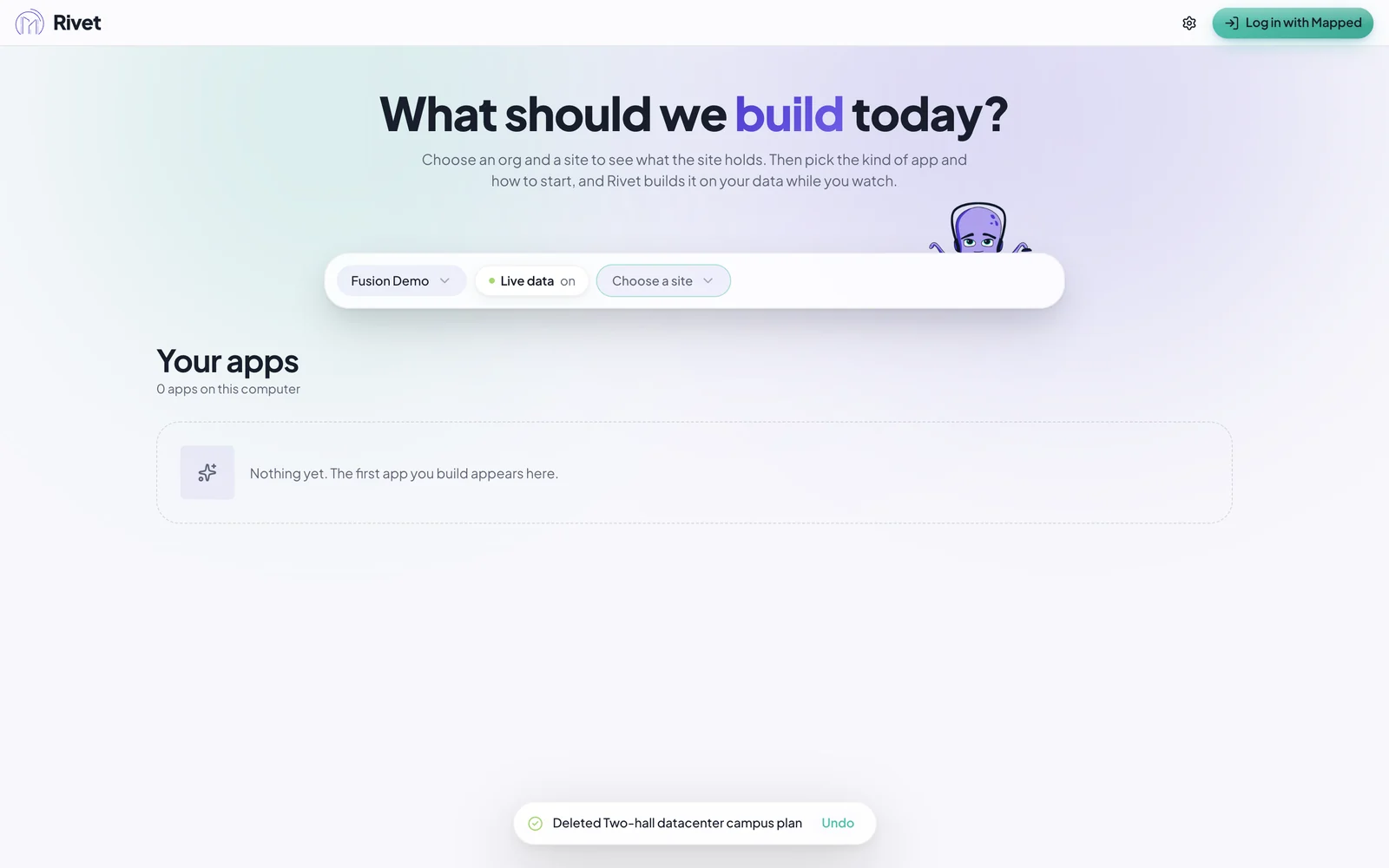
Deleting an app in Rivet doesn't touch a copy you published or shared on Rivet Cloud: the notice says so, and the copy stays until you unpublish it (Sharing).