- Docs
- Your first app
- 3. Watch it build
Step 3: Watch Rivet build it
What you see while Rivet plans and writes your board, and how to stop or undo it.
Rivet opens the app and starts work. The screen has two halves.
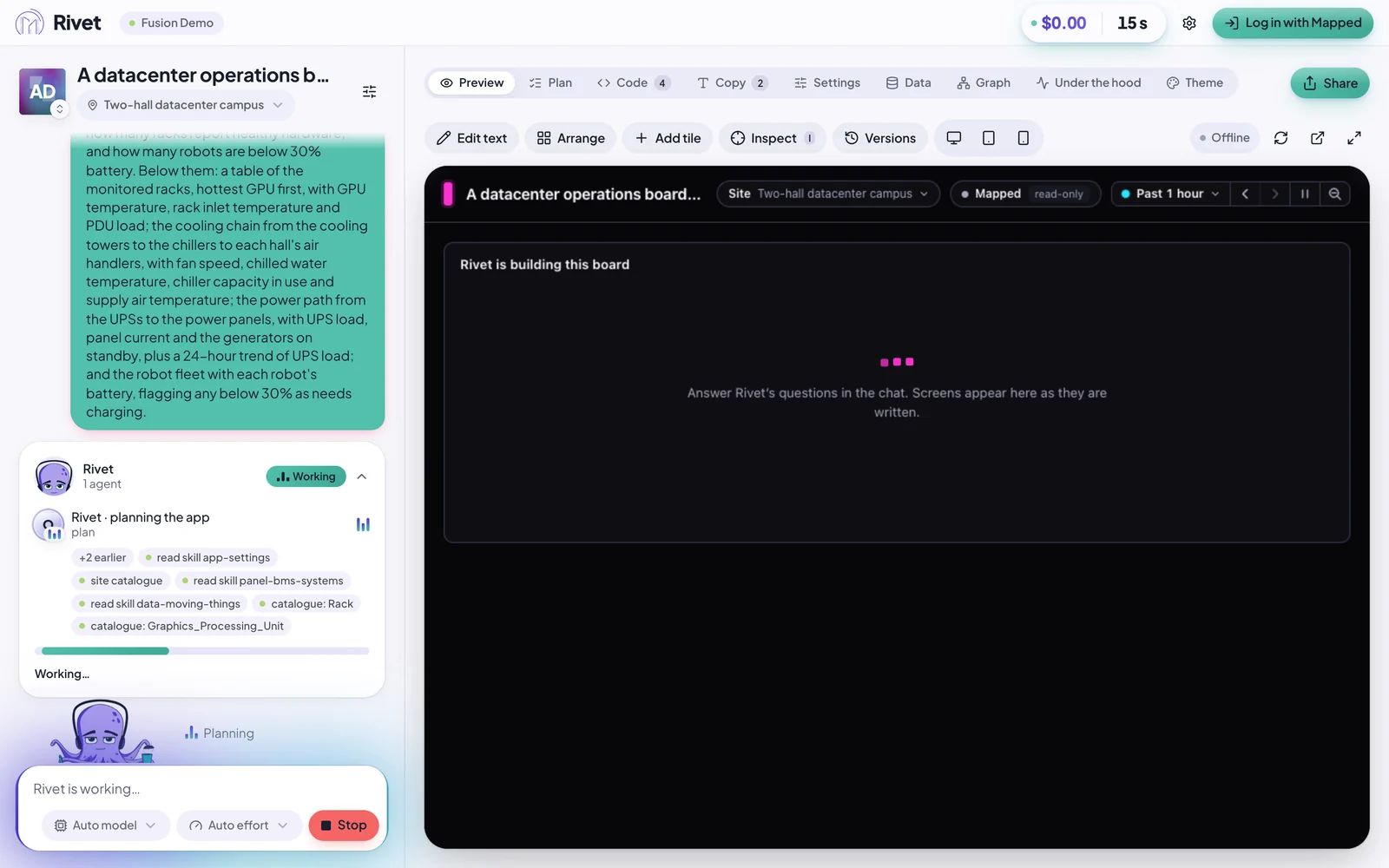
- On the left, the chat. Your description is at the top. Below it, a card shows Rivet at work: what it's doing now (planning the app at first) and each step it took, such as reading the site's equipment.
- On the right, the preview of your app. It says Rivet is building this board until the first tiles appear.
As it goes, Rivet writes short notes in the chat about what it found and decided, and tiles appear in the preview as they're written.
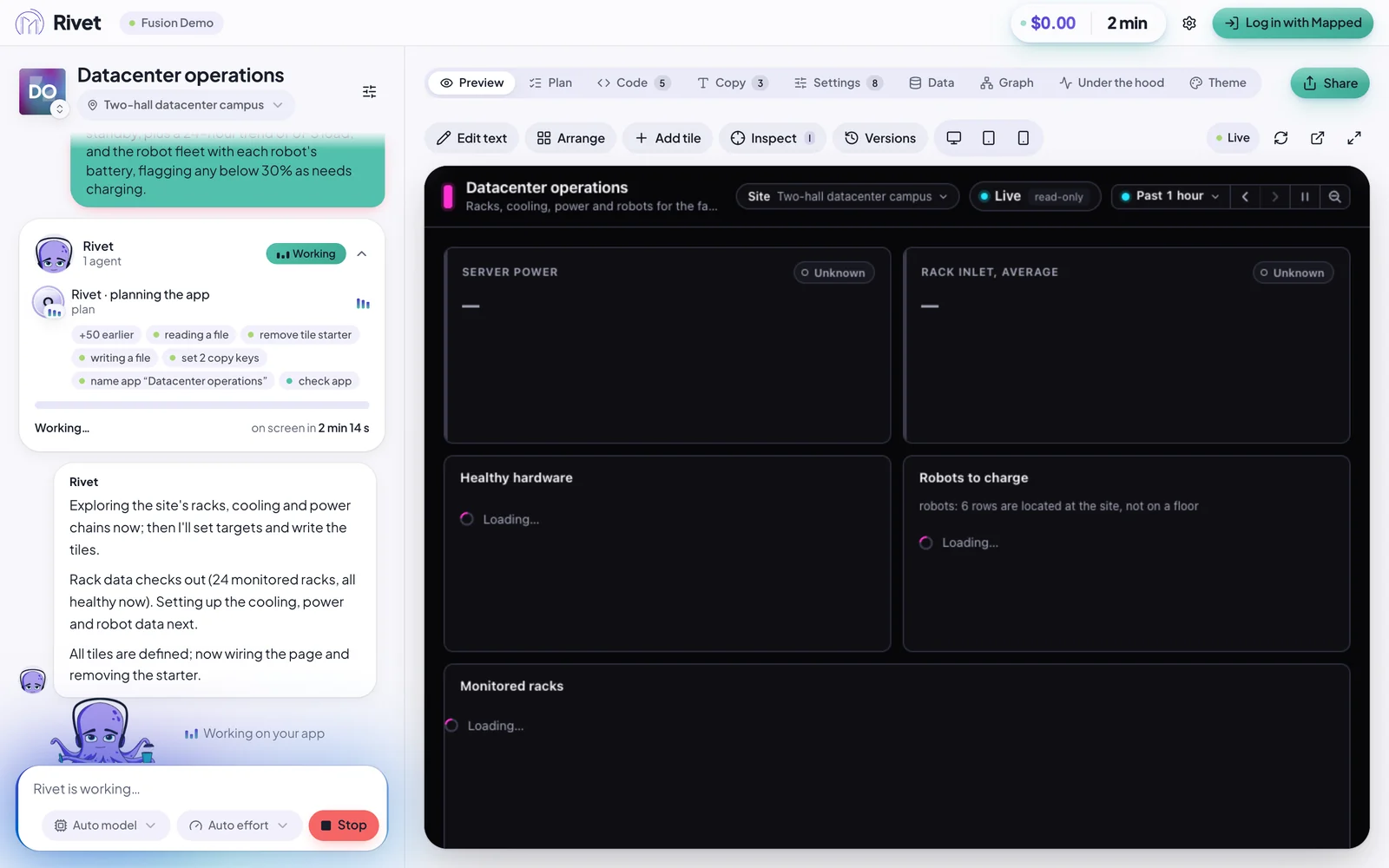
In our run on 2026-10-16, the first tiles were on screen after 2 min 14 s, and the whole board took three and a half minutes.
You don't need to do anything while it works. If you change your mind:
- Stop, under the chat, ends the build.
- Versions, in the toolbar above the preview, lists every version of the app. Open it to go back to how the app was before the build started.
When Rivet finishes, the card says Built, and Rivet sums up what it made and what you might add next.
Next: read your board.