- Docs
- Your first app
- 1. Choose the site and template
Step 1: Choose the site and what to start with
Pick the Fusion Demo org and its datacenter site, look at what the site holds, check that live data is on, and choose Dashboard.
Start on Rivet's home screen, What should we build today? If an app is open, click Rivet at the top left of the window to go Home. Home asks one thing at a time, in steps named in a row at the top: in this tutorial Site, Template, Start and Describe. Once you choose a site, the first step shows its name in place of Site. Back, or a step already passed in that row, takes you back to it.
Choose the org and the site
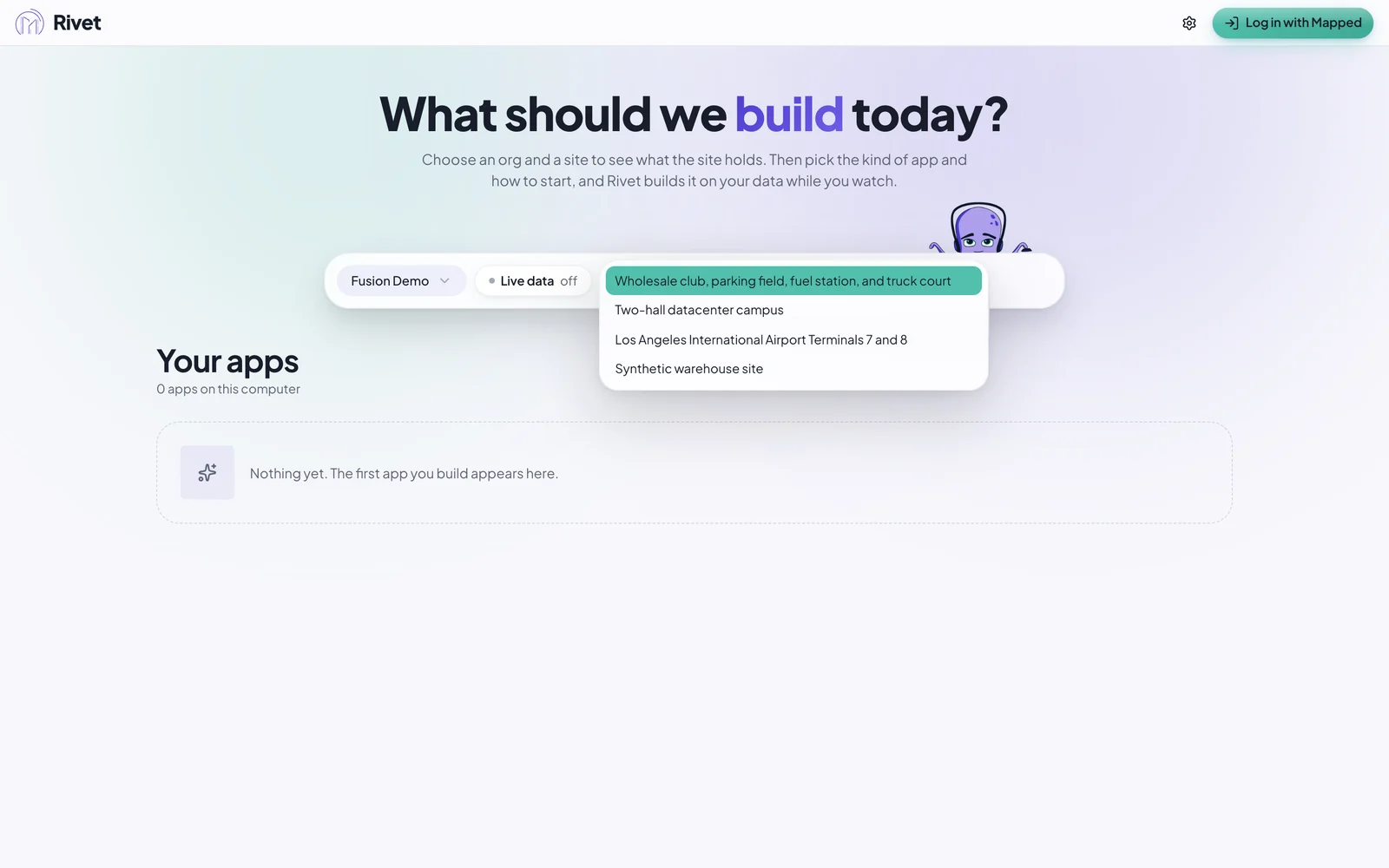
The first step, Where is it?, asks for the org and the site. Every app starts from an org and one of its sites, so they come first:
- The org menu should say Fusion Demo. If it says another org, click it and choose Fusion Demo.
- Click Choose a site and pick Two-hall datacenter campus.
Look at what the site holds
As soon as the site is chosen, Rivet shows what it holds, before it asks you anything: a plan of one floor beside the site's counts (buildings, floors, spaces, things, points, collections, work orders, service requests and 3D models), its most common kinds of equipment, and under Also at this site the kinds people often look for, such as chillers and air handlers, when they aren't among the most common.
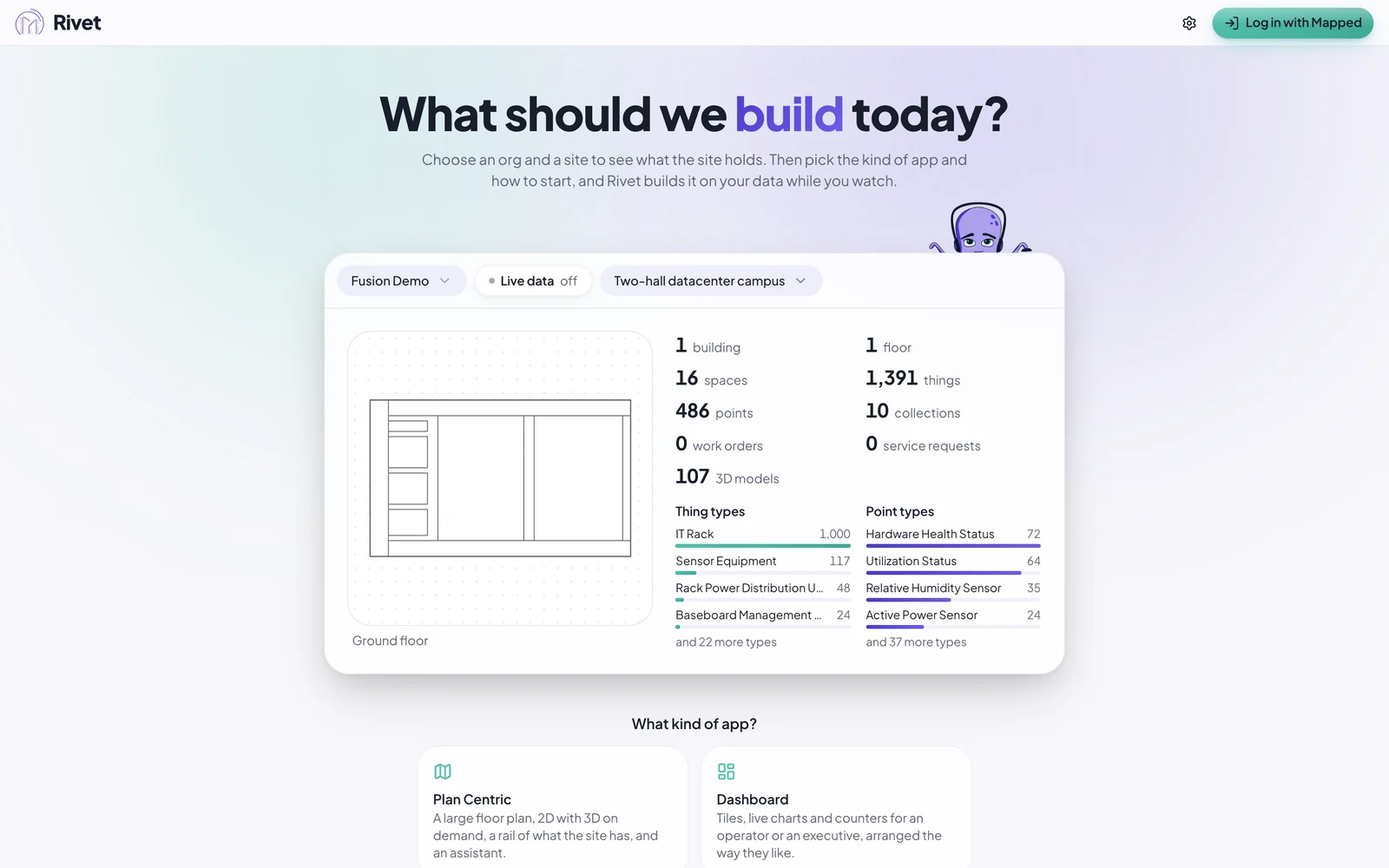
(This picture was taken before live data was turned on, so its button still says off; the next step checks it.)
A dash in place of a number means Rivet couldn't count it, not that there are none. If the card says Approximate counts, Mapped couldn't count the site in one go, so Rivet counted what it could read; see What the site card shows.
Check live data
The Live data button under the org and site should say Live data on, simulated (connecting for a few seconds first; it turns on by itself), or ready if you turned off Rivet's own connection in Settings. "Simulated" because the Fusion Demo's readings come from Mapped's simulator, as the line under the org and site says. Fusion Demo has live data, so if it still says off after a few seconds, click it to see why. See Turn on live data for what the other words mean.
Choose Dashboard
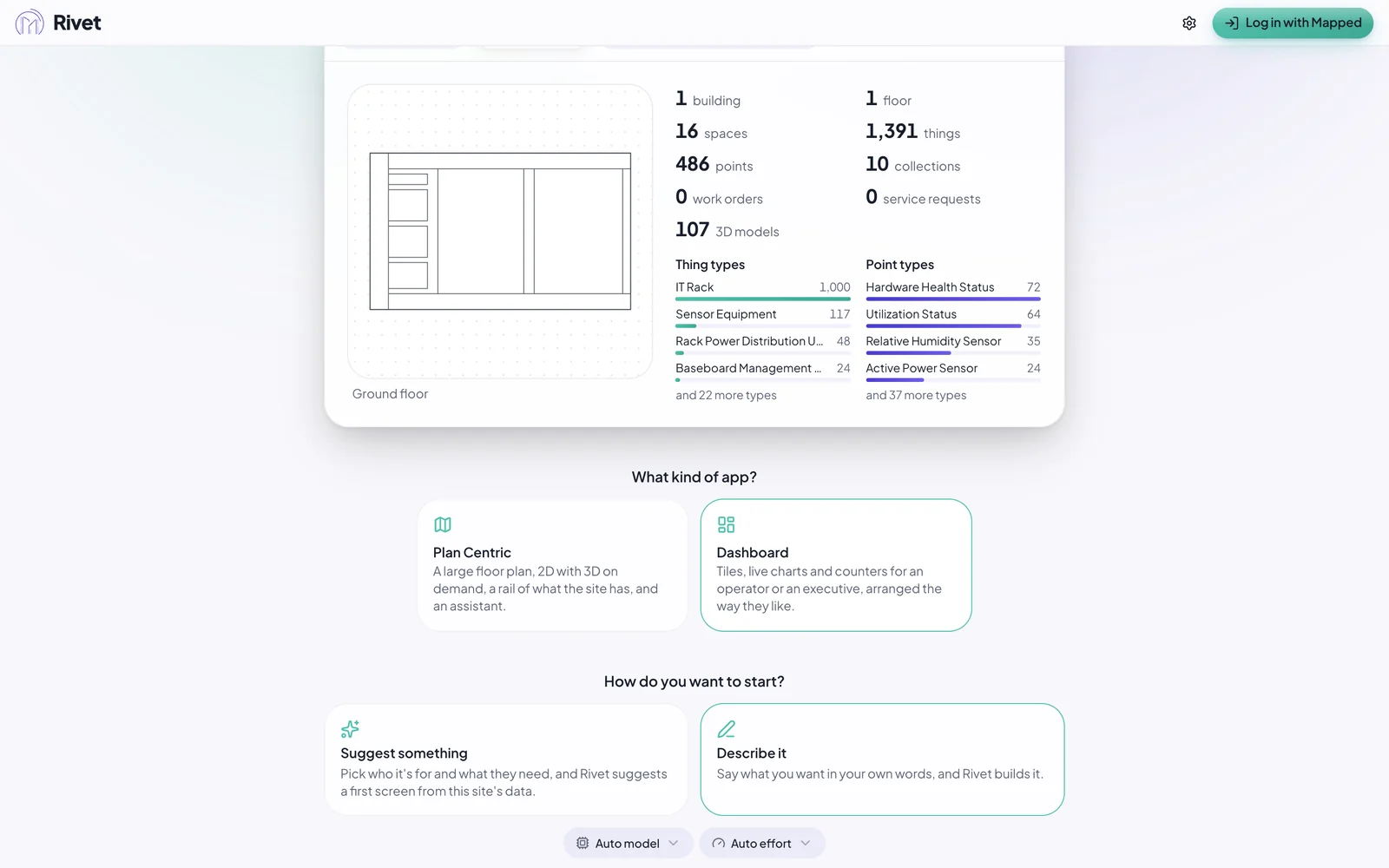
When the site card has drawn, click Continue. The next step, What to start with?, lists the templates this site can carry. Click Dashboard: "Tiles, live charts and counters for an operator or an executive, arranged the way they like." Rivet moves on to the next step, How do you want to start? A template only decides what the app starts with: you'll add a floor plan to this board later in the tutorial.
Next: describe the board.