- Docs
- Get set up
- Set up Claude Code
Set up Claude Code
Let Rivet install Claude Code and sign you in with your Claude account, or do it yourself in a terminal.
Claude Code is a program from Anthropic that Rivet builds with. It is not the Claude app you may already have on your computer: the two are separate, and Rivet needs Claude Code. Both use the same Claude plan.
You need a Claude account on the Pro, Max, Team or Enterprise plan. Check yours at claude.ai under Settings › Billing.
Let Rivet set it up
On the Choose who does the building step (or in Settings › Who builds), pick Your Claude Code. If Claude Code isn't on your computer yet, Rivet says Rivet needs Claude Code on this computer and shows two steps.
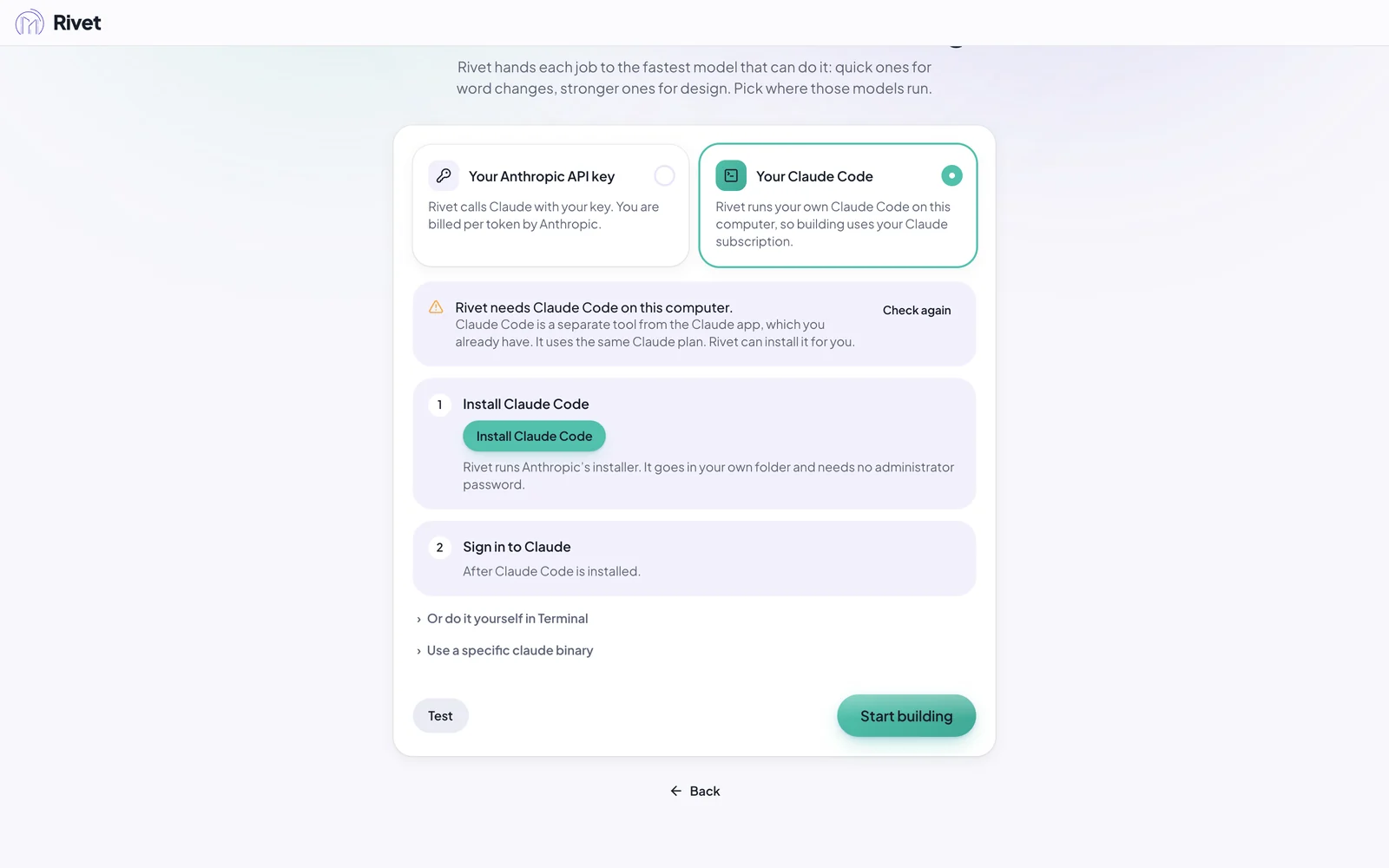
1. Install Claude Code
Press Install Claude Code. Rivet runs Anthropic's own installer and shows its progress. It takes a minute or two, goes in your own folder, and needs no administrator password. When it's done, the step gets a tick.
2. Sign in to Claude
Press Sign in to Claude. A Claude sign-in page opens in your browser. Sign in with the Claude account that has your plan. The page then shows a code: copy it, paste it into Code from Claude in Rivet, and press Sign in. Rivet never sees your password.
If the sign-in page didn't open, press Open the sign-in page again.
3. Test
The card turns green by itself and says Claude Code is ready and signed in, with its version. Press Test: a green message that says Claude Code is "signed in with a Claude account" and that a test prompt answered means Rivet can build with it.

Or do it yourself in a terminal
Rivet's card has the same steps under Or do it yourself in Terminal (in PowerShell on Windows), each with a copy button. A terminal is a window where you type commands to your computer.
Open a terminal.
- Mac: press ⌘ Space, type Terminal, and press Return.
- Windows: press the Windows key, type PowerShell, and press Enter. The window's last line starts
with
PS C:\.
Paste the install line for your computer and press Return (or Enter). Wait until you can type again.
Mac:
curl -fsSL https://claude.ai/install.sh | bashWindows (PowerShell):
irm https://claude.ai/install.ps1 | iexThen type this, and sign in with your Claude account in the browser that opens:
claude auth loginCome back to Rivet. The card turns green by itself; if it doesn't, press Check again.