- Docs
- Get set up
- Turn on live data
Turn on live data
Let your apps update the moment a reading changes, with Mapped's live stream for your org, and turn it off when you need to.
Without live data, Rivet's apps check Mapped for new readings every few seconds. With it, readings reach your app the moment they happen: temperatures move, robots glide across the floor plan, a door that opens shows as open straight away, and a chart's line grows at its right-hand end as each reading arrives. Either way the app works and shows the same things; live data is quicker, and it uses more network.
Live data is set up once per org, by whoever is allowed to add connectors in Mapped. After that, every app on that org can use it.
Check whether it's on
On Rivet's home screen, under the org and site, a line starts with a button that says Live data and one word, followed by a sentence saying what it means for the apps you build there:
| Word | Meaning |
|---|---|
| checking | Rivet is asking about the org's live data, for a moment after you choose the org. |
| on | Readings arrive as they happen. Nothing to do. |
| on, simulated | Readings arrive as they happen, from Mapped's simulator: the org is the Fusion Demo, Mapped's org of example sites, not a real site. |
| connecting | Rivet is connecting to the stream. It usually turns to on within a few seconds. |
| ready | The org has live data, and Rivet connects to it only while an app you open has live data on (see Rivet's own connection). |
| off | The org has it, but Rivet isn't connected. The sentence after the button says why; click the button for more. |
| not set up | The org doesn't have it yet. Click the button to install it. |
Click the button any time to see more.
The Fusion Demo org already has live data, so it says on, simulated: its sites' readings and moving things come from Mapped's simulator. Under the org and site, the home screen says so in a line of its own. The button turns on by itself a moment after you choose the org or the site, once Rivet reaches the org's stream; you don't need to press it.
Install it for your org
- Click Live data. The dialog says live data is not set up for this org.
- Press Install. Rivet installs the stream, waits for Mapped to start it, connects, and waits for the first readings. Each step gets a tick.
- When it says Live data is on, the dialog closes by itself a moment later.
Rivet may offer this by itself once: when you choose an org on the home screen that doesn't have live data, the dialog opens, unless your Mapped role can't install it, Mapped refused an install before, or you entered the stream's credentials yourself in Settings. Press Not now and it won't open by itself for that org again. Either way, the Live data button opens it whenever you want, and so does clicking the org's name in an open app's title bar or the preview's dot.
When your org shares its live data
Some orgs, such as the Fusion Demo sandbox, share one live stream with everyone in them. There you're signed in to it as yourself, with the Mapped account Rivet already uses, so there's nothing to install. The Live data dialog says "You're signed in to this org's live data as yourself, so there's nothing to install." and offers no Install or Reinstall. Settings › Access tokens says Live stream: signed in as you.
Who can install it
Mapped decides. When you log in with your Mapped account, the dialog tells you beforehand what your role usually allows: "Your Mapped role can add connectors to this org", or that it doesn't, and that an org admin can install it. With a personal access token Rivet can't tell, so the dialog says "Mapped checks your permission when you install it". If Mapped refuses, the dialog says so; ask your org's Mapped administrator to install it, or to give you the role that can.
Cancel
While it installs, Cancel stops Rivet waiting. It undoes nothing: an install already sent to Mapped still finishes on its own, and the Live data button shows it once it does.
When it stops working
If the org's live data is installed but stopped or failing, the dialog offers Reinstall, which starts it again and keeps its settings. If someone else set it up, the dialog says so first: "Someone else set it up: restarting it briefly disconnects their apps too."
When you can't read its password
Live data has a password of its own. If yours is a role that can see live data but not its password, the dialog says "Live data is installed, but your access cannot read its password" and offers Open Settings. In Settings › Access tokens, open Enter live stream credentials and type the Connector id and Password your org's Mapped administrator gives you, or ask them for a role that can read it. This doesn't happen in an org that shares its live data.
Removing it
Rivet never removes live data from an org. To remove it, use Mapped's console.
In an open app
Every app says in its header, beside the org's name, how its readings arrive:
| The header says | What it means |
|---|---|
| ● Live | Readings arrive as they happen. |
| ◌ Connecting | Rivet is connecting to the live stream. Until readings flow, the app checks for new ones every few seconds. |
| ○ Live off | You turned live data off for this app. It checks for new readings every few seconds. |
| Mapped | Nothing to turn off: the org has no live data, so the app checks for new readings every few seconds, or the app shows no live readings. |
| Replay | The app plays a recording, not your building. |
| Reviewing | The page is looking back at an earlier moment. Press it to come back to now. |
| Held | The page is held as it stood at a moment. Press it to come back to now. |
While the page looks back (Look back in time), its dot still says how readings arrive: filled while live data is on, an empty ring when you turned it off. Pressing Reviewing or Held brings the page back to now and leaves live data as it was. Hover it to see the moment and whether live data is on.
In Rivet, the app's preview also has a dot at the top right: a pulsing green Live while it receives readings, Connecting, Live off when you turned it off in the app, or a grey Offline when the app wants readings and they aren't reaching it. An app that asks for no live readings, such as a board whose tiles all show history only, says No live values: nothing is wrong, there is simply nothing live for it to show. On an app that reads your org, click the dot to open the Live data dialog, which says whether live data for your org is on and why the app is or isn't live (for a board of history, "This app's tiles read history only, so it shows no live values"), and can reconnect. Until the app has said whether it receives live values, a moment after it loads, the dot says Checking….
Turn live data off for an app
Live data can be a lot of data on a large building. When your network is slow, metered or shared, turn it off:
- Press ● Live (or ◌ Connecting) in the app's header. It changes to ○ Live off.
- Press ○ Live off to go live again.
Turning live data off:
- affects only this app, in this browser. Other apps, other people and other browsers are not changed.
- is remembered until you turn it back on, also after a reload or a restart.
- keeps the app working. Readings update every few seconds instead of as they happen, and people and machines on the plan keep moving, updated every few seconds.
Live off is not the same as the pause button beside the time range. Pause freezes the time window you are looking at; live off changes how new readings reach the app.
Rivet's own connection
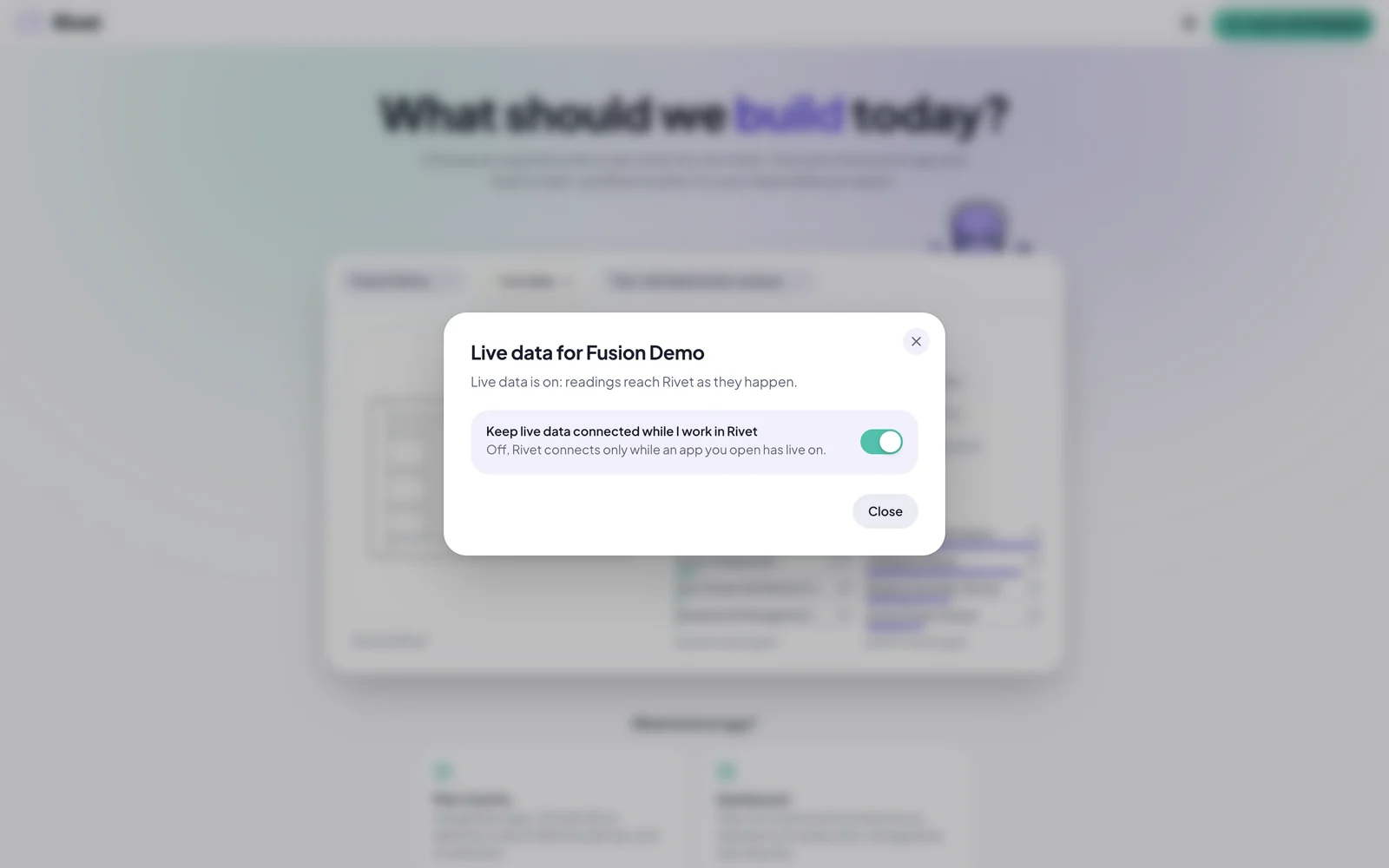
While you work in Rivet, it keeps your org's live stream connected, so it can tell you whether readings are flowing and Claude can check what your app receives. You can turn that off with the switch Keep live data connected while I work in Rivet:
- in Settings › Access tokens, where it applies to every org, and
- in the Live data dialog.
It is on unless you turn it off. With it off, Rivet connects to the live stream only while an app you have open has live data on, and the Live data button says ready instead of on, because Rivet can't tell whether readings are flowing while no app is listening.
Rivet connects to the live stream only while something wants it: an app open with live data on, Rivet itself while the switch is on, or the Live data dialog while it waits for the first readings after you set it up. When nothing does, it disconnects shortly after.
Apps you share
Live data works the same everywhere an app runs: in Rivet's preview, in a browser, in the desktop player and in a Docker image. In an app shared with several people, the app's server stays connected while any one of them has live data on, so turning it off saves your own network, not theirs.
A reading's age, and what an app remembers
A number tile prints how old its reading is under the figure only when the reading is older than the time range the page (or the tile) shows. Otherwise, hover the number, or turn the tile over, to see when it was read and whether it came live or from a check every few seconds. See How old a number is.
Live off, like the site, floor, time range and a table's sort, is remembered for each app in your browser. See What a board remembers.