- Docs
- Your first app
- 6. Make it yours
Step 6: Make it yours
Retype words in place, point at a tile to change it, adjust its limits, and change the look, with no prompt at all for most of it.
Some changes don't need Rivet at all. The toolbar above the preview has tools that change the app directly.
Retype the title with Edit text
- Click Edit text above the preview. A tip appears: "Click any words in the app to retype them."
- Click the title, Datacenter operations.
- Select it all (⌘ A on a Mac, Ctrl A on Windows) and type
Night shift: datacenter. - Press Return, then click Edit text again to finish.
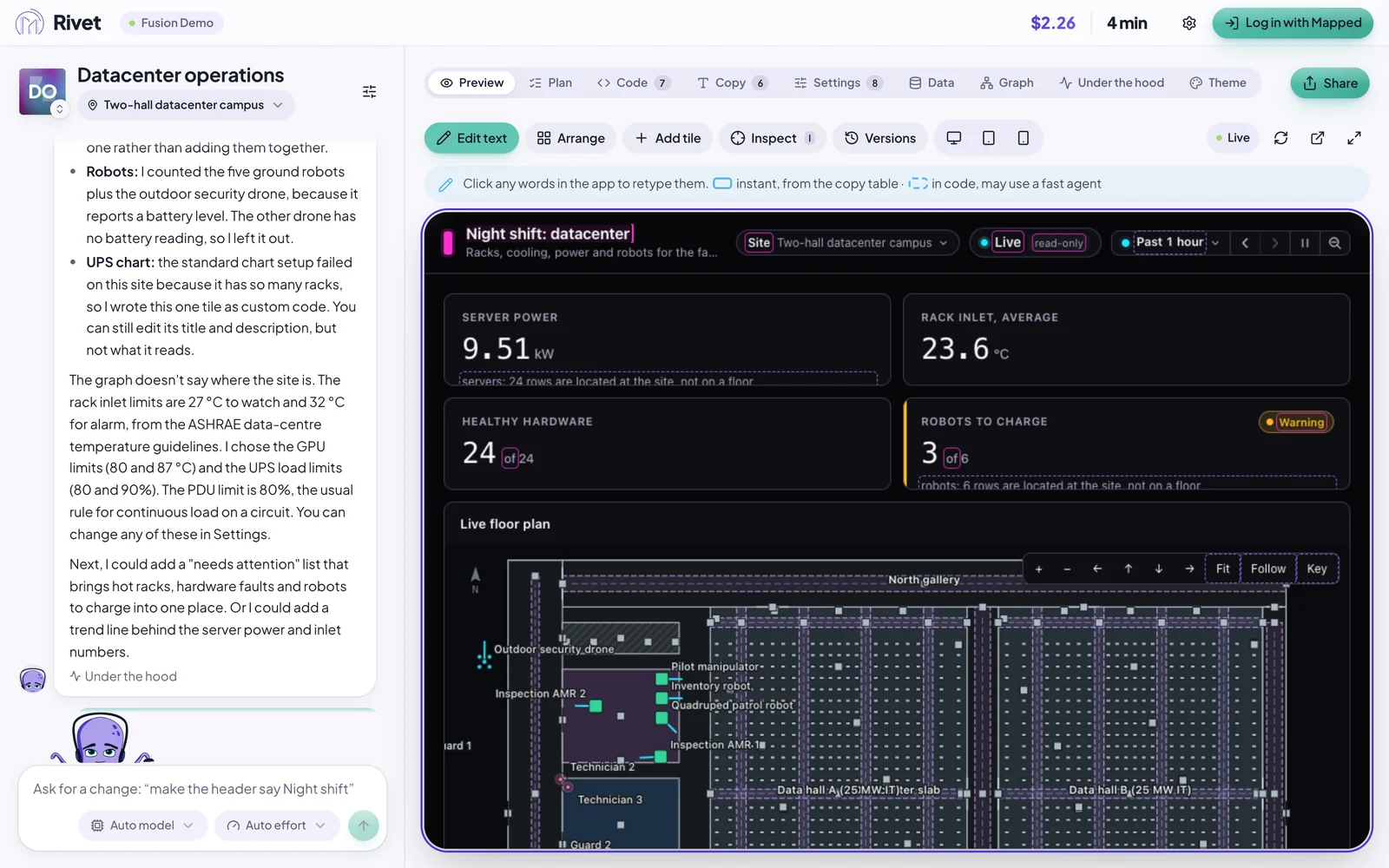
The change is instant and costs nothing: no AI is involved.
Point at a tile with Inspect
When you want to change one thing, point at it, so Rivet knows exactly what you mean.
Click Inspect. Whatever is under the pointer gets an outline.
Click the Monitored racks table. It's pinned to your next message, and the chat box now says Ask about this element…
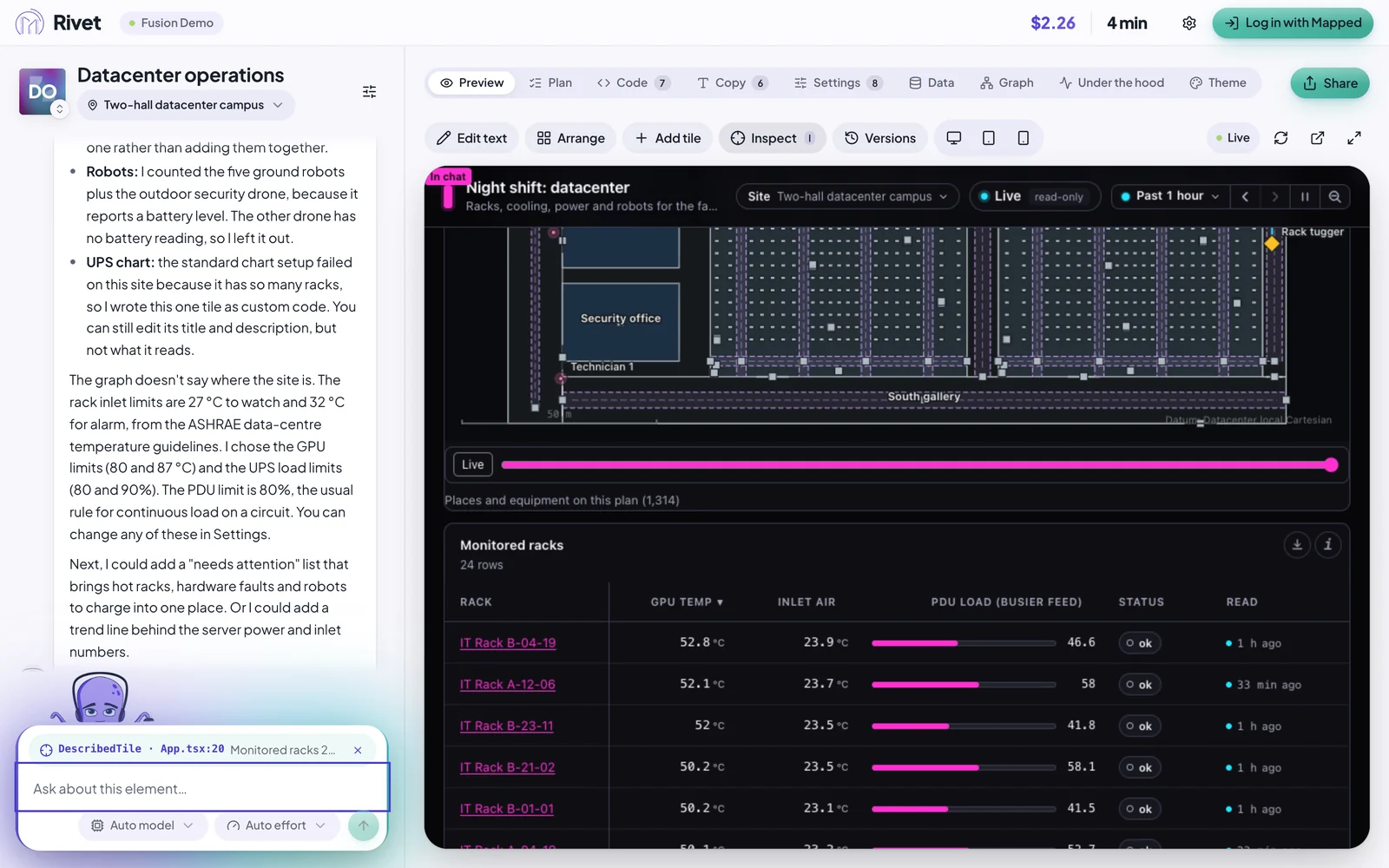
Type this and press Return:
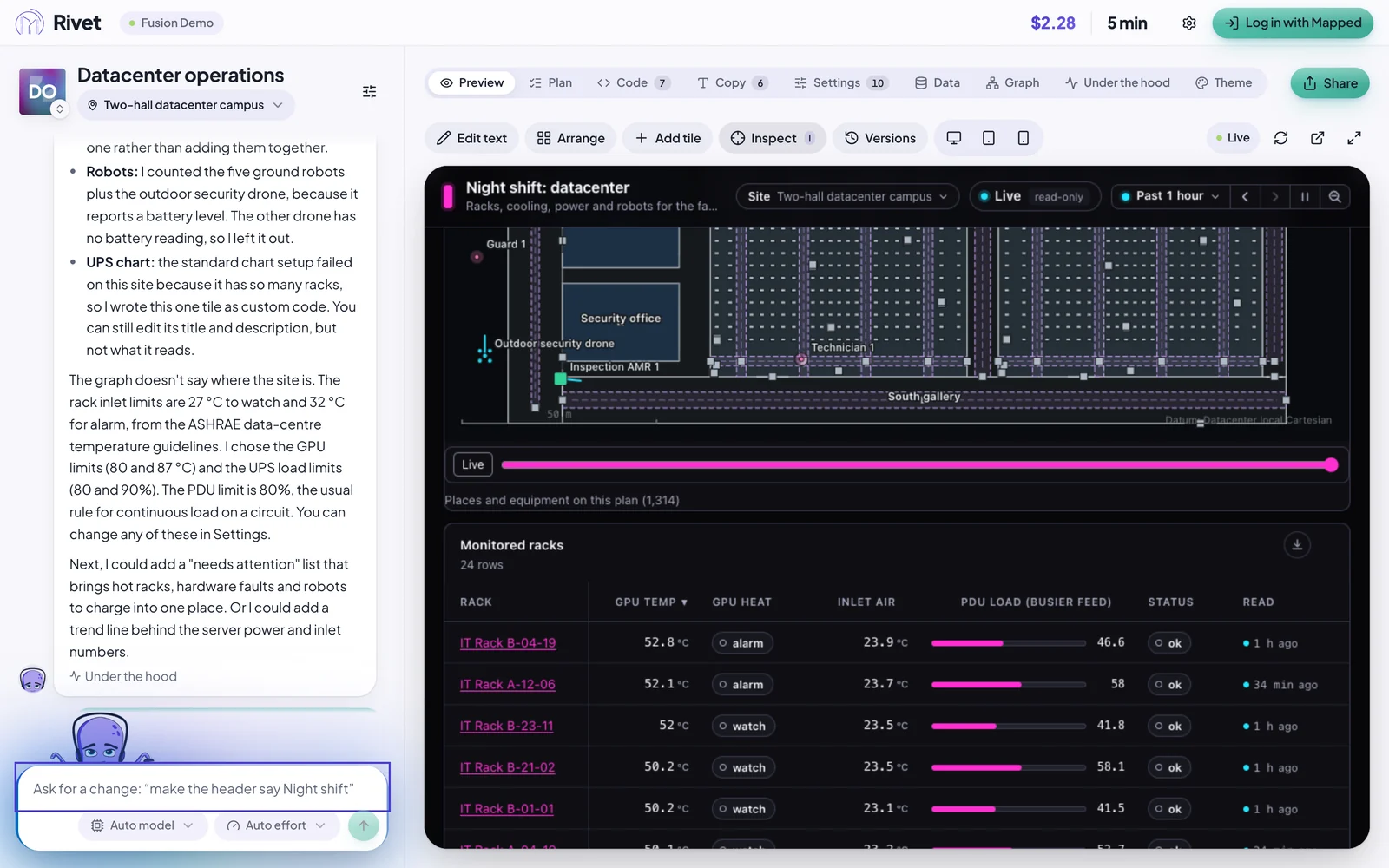
Colour the GPU temperature amber above 50 °C and red above 52 °C.
In our run on 2026-10-16, a quick helper added a GPU heat column beside the GPU temperature: watch above 50 °C and alarm above 52 °C, in 26 seconds. It saved the two limits as settings, too.
Change the limits yourself, in Settings
Rivet doesn't bury numbers like "50 °C" in the app. It records them as settings you can change. Click the Settings tab above the preview.
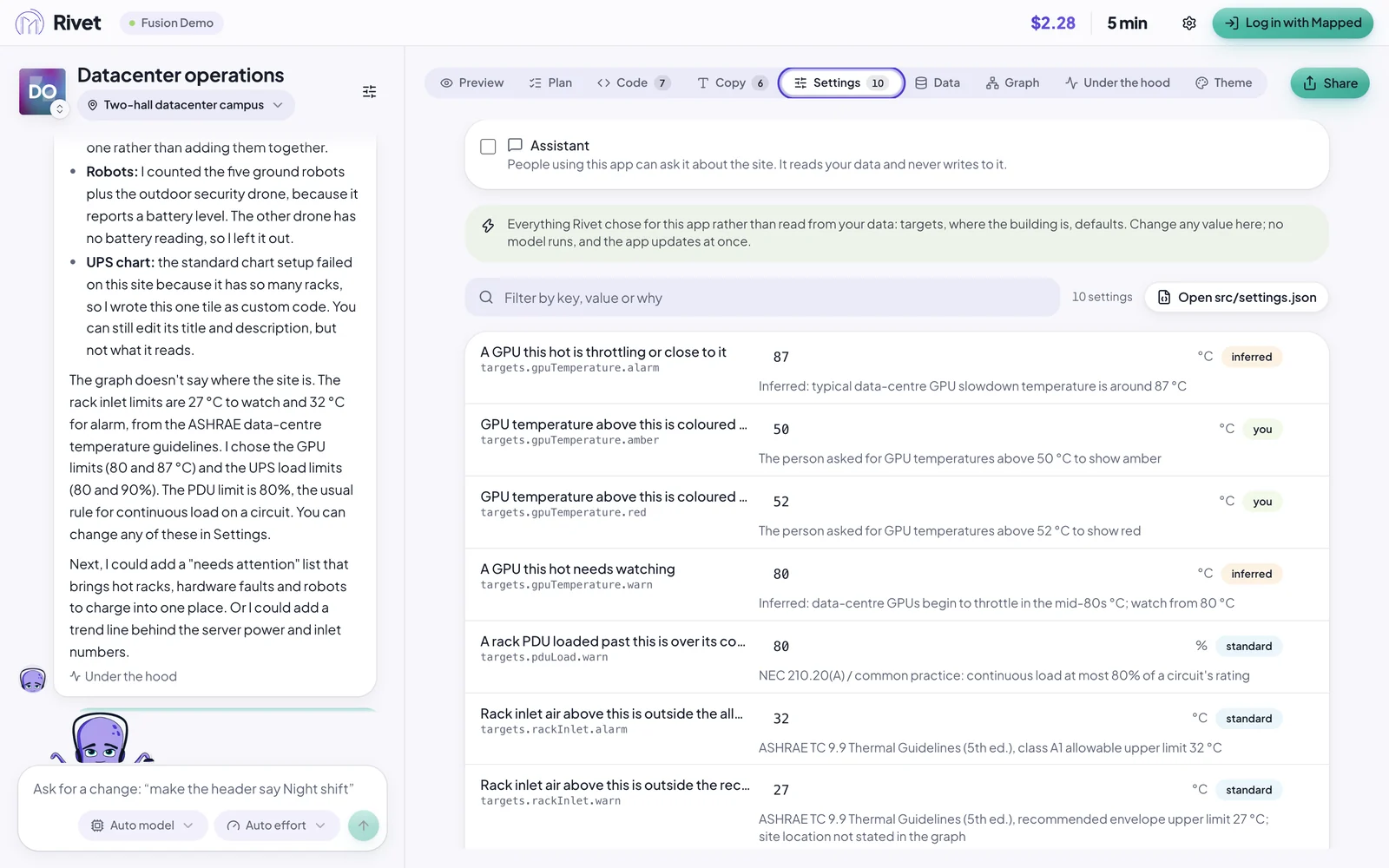
Each setting says where it came from: you (you asked for it), standard (a published guideline, such as ASHRAE's for rack inlet air) or inferred (Rivet worked it out). Change a value and the app updates at once, with no AI involved.
The tab lists its sections on the left. At the top, Assistant adds an assistant the people using the app can ask about the site, called Ziggy until you name it. It reads your data and never writes to it. Your limits are under App values.
Change the look with Theme
Open the view menu above the preview (the button that names the view you are on) and choose Theme. Pick a preset (Neon night, Daylight, Control room, High contrast dark and others), switch between Dark and Light under Mode, or type a look you'd like under Describe a look, such as "calm, high contrast", and press Generate.
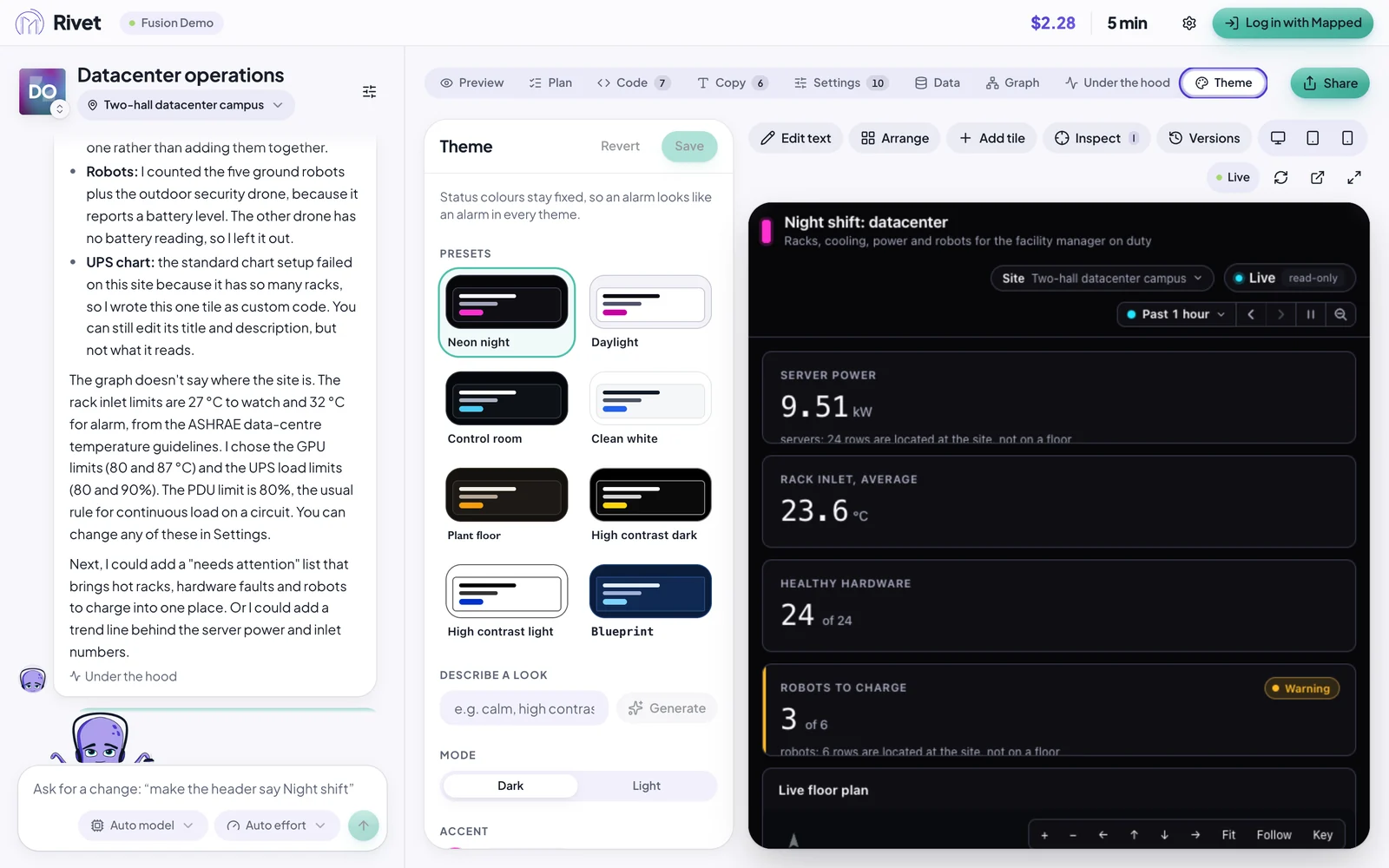
Alarm colours never change with the theme, so red always means the same thing.
Undo anything
Versions, on the toolbar, lists every change to the app. Open it to step back to any earlier version.
What's next
You've built a live board, changed it in plain words, retyped it, pointed at a tile and set its limits. Handing it to someone else is the one step still to come: Rivet is single-player for now, so the board runs in Rivet on your computer.
- Build one for your own buildings: switch the org and site on the home screen and describe what your team needs.
- Browse What you can build for ideas.
- Learn the rest of the toolbar in Change your app.